Noise Buds Venus Truly Wireless Earbuds - Noise Partner Exclusive
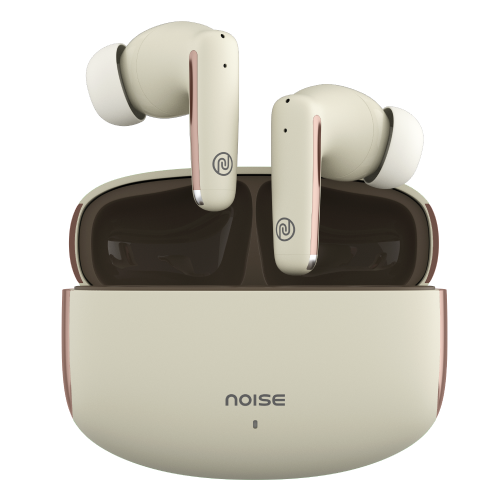
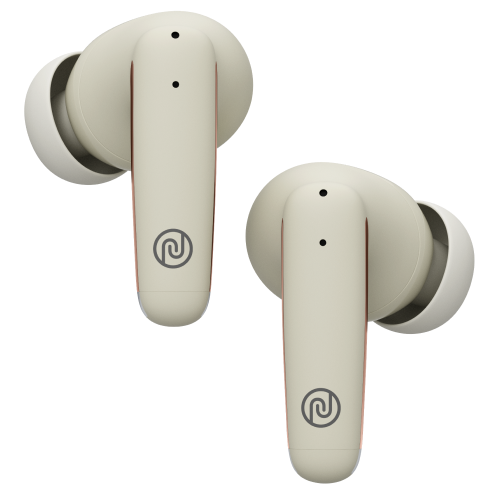
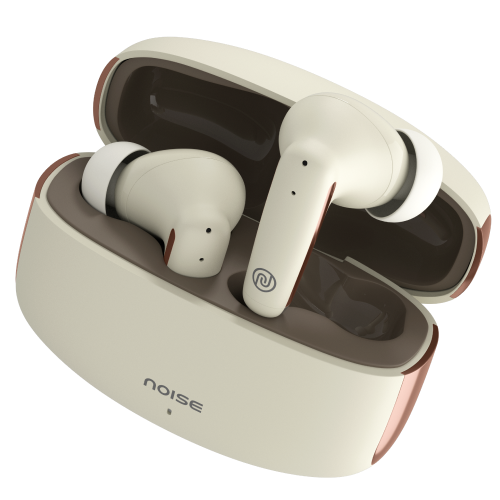
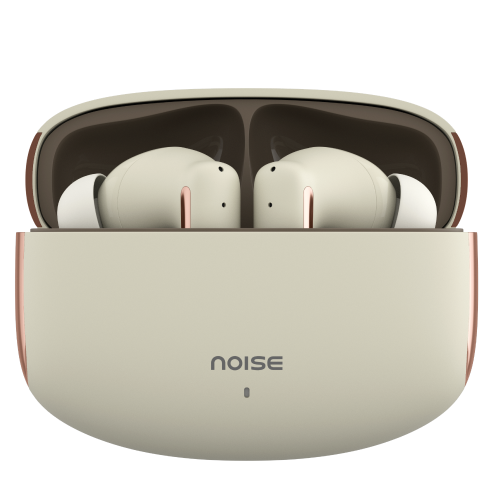
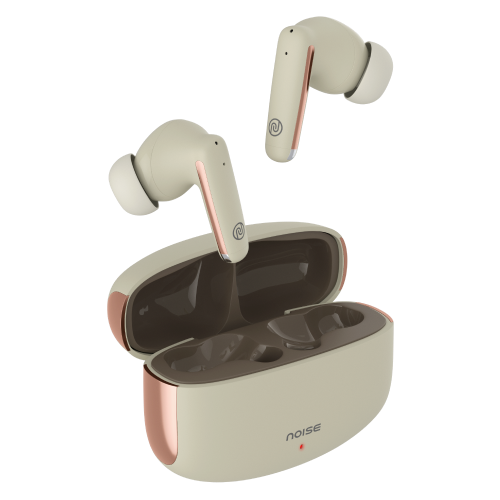
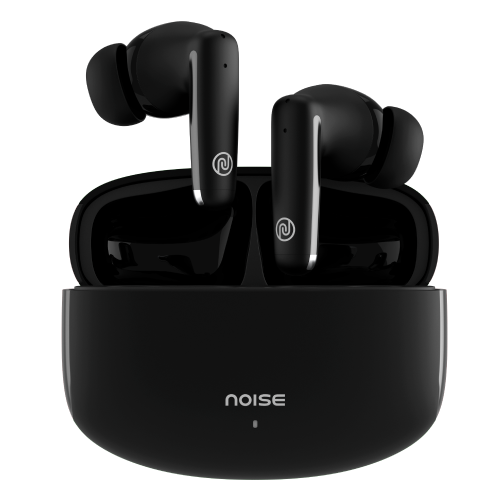
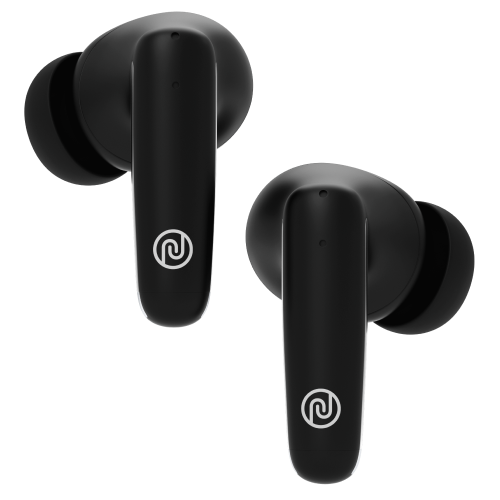
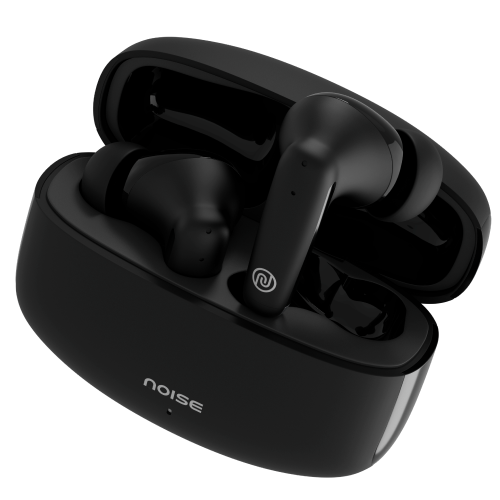
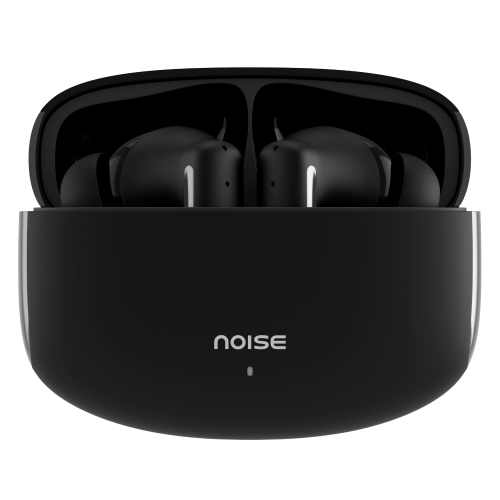
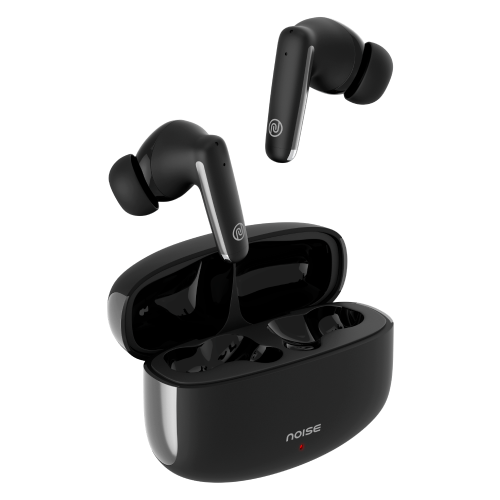
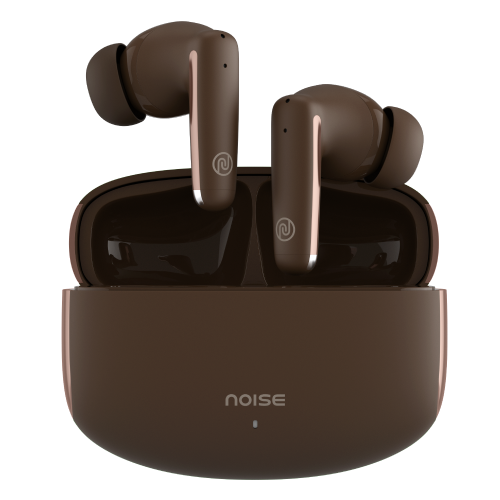
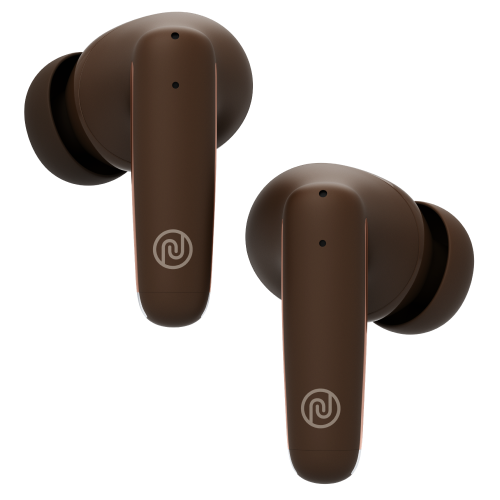
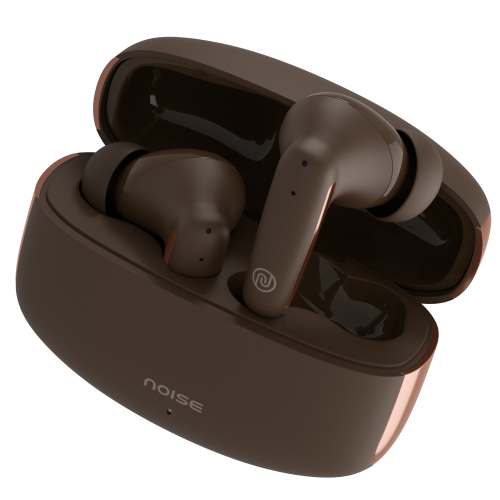
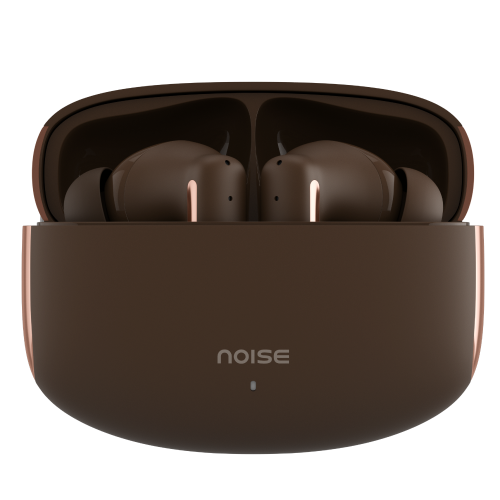
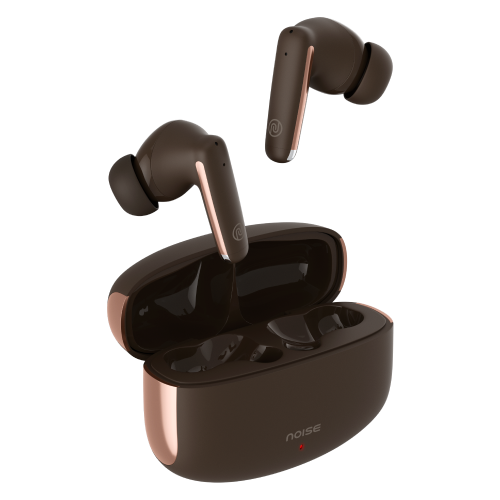
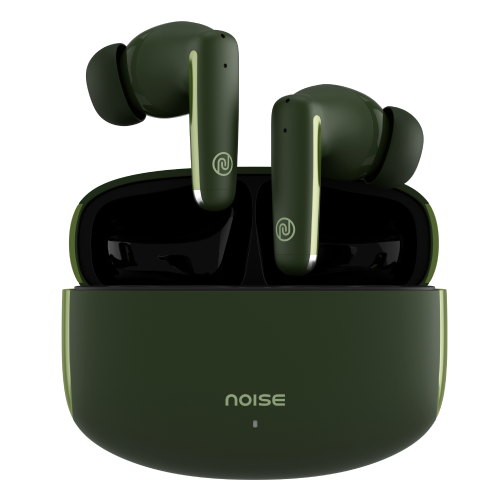
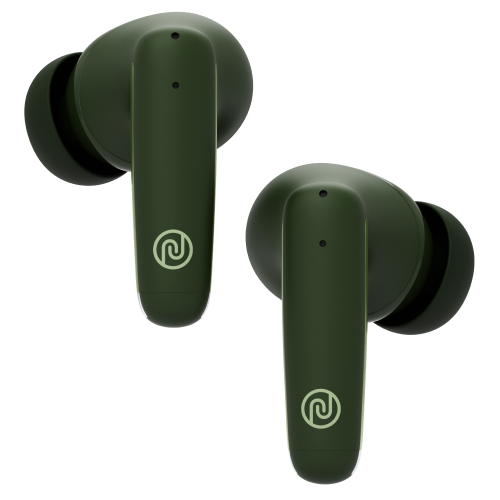
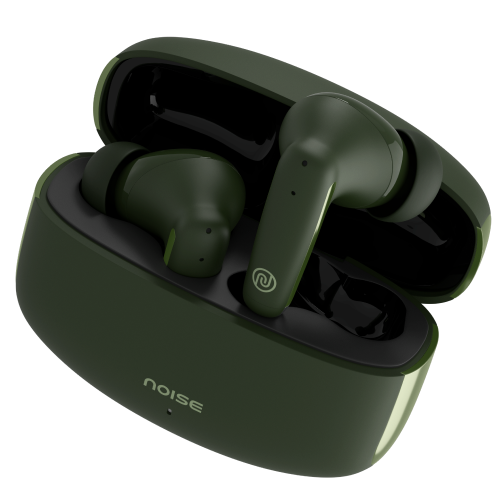
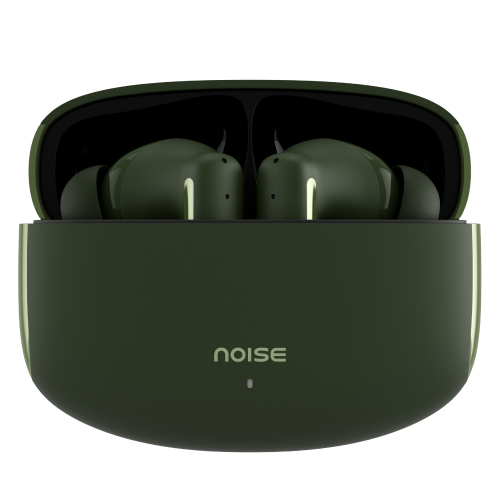
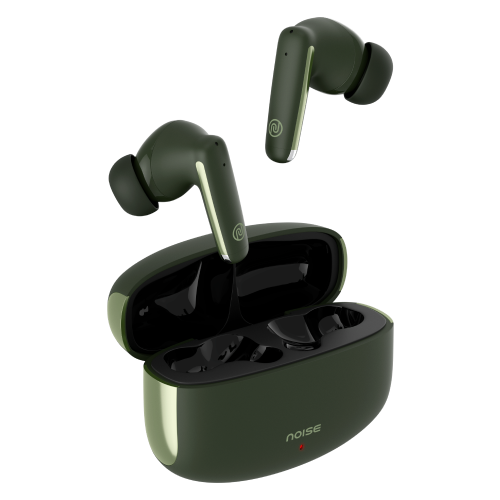
Meet Noise Buds Venus truly wireless earbuds with active noise cancellation up to 30 db, 40 hours of playtime, Quad Mic with ANC, 4 premium colours, and more. Buy now.
Specification
| Country of Origin | China |
|---|---|
| Package Contents | 1 device, 1 charging cable, 1 user manual, warranty card |
| Marketed & Imported By | Nexxbase Marketing Pvt. Ltd, Khasra No-146/25/2/1, Jail Road Badshahpur, Gurugram Haryana-122101 |
AUDIO
| Speaker Driver | |
| 10mm |
CONNECTIVITY
| BT | |
| 5.3 | |
| Wireless Range | |
| 10m | |
| BT Supported Profile | |
| SBC, AAC | |
| Compatibility | |
| Android & iOS |
BATTERY CHARGING
| Playtime | |
| Up to 7 hours on a single charge and an additional 33 hours with the charging case | |
| Earbud Charging Time | |
| Up to 1.5 hours | |
| Charging Case Charge time | |
| Up to 1.5 hours | |
| Charging Indicator | |
| Yes |
PHYSICAL SPECIFICATION
| Earbuds Weight | |
| 3.5 grams each | |
| Charging case dimension | |
| 6.1*4.9*2.5mm | |
| Charging case weight | |
| 40 grams | |
| Water Resistance Rating | |
| IPX5 water-resistant |
ADDITIONAL FEATURES
| Instacharge™ | |
| 10-min charge = 120-min playtime | |
| Environmental Noise Cancellation | |
| Yes | |
| Active Noise Cancellation | |
| Yes (up to 30dB) | |
| Quad mics | |
| Yes | |
| Hands free Calling | |
| Yes | |
| Single button reset | |
| No | |
| Voice Assistant | |
| Siri, Google Assistant |
COMFORT
| Form Factor | |
| In-ear | |
| Controls | |
| On ear touch control (Volume, Music, Call control feature on both earbuds, Siri and Google Assistant) |
FAQs
ABOUT THE PRODUCT
Can I use Buds Venus as a single earbud while listening to music?
Yes, you can. Place one earbud inside the case and use the other one.
Do Buds Venus have a touch feature to change tracks?
Yes, you can change tracks by tapping the earbuds. Tap the right earbuds thrice to go to the next track. Tap the left earbud thrice to go to the previous track.
How is the calling?
Buds Venus delivers an incredible calling experience.
During calls is the audio available in both ears?
Yes, Buds Venus supports stereo mode during calls and music as well.
Does it announce the caller name or number on incoming calls?
No it does not.
What is the exact use of that case?
The case works as an on-the-go charging and holding case for the Buds Venus.
Do Buds Venus have a fast pairing option?
Yes, Buds Venus comes with Hyper Sync™ technology.
Are Buds Venus earbuds waterproof?
Buds Venus earbuds are IPX5 water-resistant. However, the buds need to be completely dried before placing them back in the case to maintain their long life.
What are the colour options?
Buds Venus are available in 4 colours – Black, Green, Brown & White
COMPATIBILITY
Are Buds Venus compatible with iPhones?
Yes, they are compatible with iPhones.
Are Buds Venus compatible with Android smartphones?
Yes, they are compatible with Android smartphones.
Can Buds Venus be connected to a laptop/computer?
Yes, Buds Venus can be connected to the laptop/computer as long as the latter is equipped with BTth connectivity provision.
Do they support BTth 4.2?
Buds Venus are best suited with BTth v5.3. However, they support smartphones with BTth v4.2 as well.
What is the BTth range from the phone?
The BTth range is 10 metres without any obstacle.
Can I use Siri/Google Assistant?
Yes, you can use Siri & Google Assistant.
BATTERY & CHARGING
What is the battery backup?
The battery backup of the earbuds is up to 7 hours on a single charge and backed with the charging case, they provide a total playtime of up to 40 hours.
How much time does it take to charge Buds Venus?
The Buds Venus takes up to 1.5 hours while the case takes up to 1.5 hours to charge.
Can Buds Venus be charged without putting them into the charging case?
No, they cannot be charged without the charging case.
What to do in case the charging case is not charging?
You can reach out to us on the following link (https://www.gonoise.com/pages/register-your-complaint)
How do I check the Buds Venus battery level?
You can check the battery level of the Buds Venus earbuds on your smartphone. Go to the notification bar and look at the BTth icon. The battery level is mentioned under it.
You can also check the battery level/charging status of the charging case on the case.
Blinking red LED on the charging case indicates charging while solid red LED indicates fully charged.
Can I charge Buds Venus with my PC/laptop?
The earbuds need to be placed inside the charging case to power them up. The charging case can be connected to a PC/laptop. Please use the Type-C charging cable provided with the device.
GETTING STARTED
How to turn Buds Venus on and off?
The earbuds will turn on automatically when you open the charging case and turn off on placing them inside the charging case.
How to pair Buds Venus with your smartphone?
Before starting, make sure that the earbuds are charged. Open the charging case and take the earbuds out. Turn on the BTth on your device and open the BTth menu. Now select Add device and from the list of devices, select Noise Buds Venus. Your Noise Buds Venus earbuds are now paired and ready to use. Note: Buds Venus will automatically connect to the last paired device as soon as you open the case.
TROUBLESHOOTING
Only one bud is working, what do I do?
Check if the non-working earbud is charged and connected to your device. Try to reset the earbuds and connect them, if they still don’t work, please raise a support ticket at support.gonoise.in.
How to reset Buds Venus?
Before resetting, ensure that the earbuds and the case are charged fully. On your paired devices, remove/delete Noise Buds Venus from the list of paired devices in the BTth menu. Take the earbuds out. Tap and hold the earbuds for 8 seconds. A voice prompt ‘Factory reset successful’ will indicate that the Buds have been reset.
Is a single earbud available if one of them goes missing?
No, single earbuds are not available.
WARRANTY REGISTRATION
Is there a warranty for this product?
Yes, there is a 1-year manufacturing warranty from the date of delivery of the product.
Where do I register for the product warranty?
Please follow the link to register for the warranty, https://www.gonoise.com/pages/warranty-registration.
Are Buds Venus compatible with iPhones?Yes, they are compatible with iPhones.Are Buds Venus compatible with Android smartphones?Yes, they are compatible with Android smartphones.Can Buds Venus be connected to a laptop/computer?Yes, Buds Venus can be connected to the laptop/computer as long as the latter is equipped with BTth connectivity provision.Do they support BTth 4.2?Buds Venus are best suited with BTth v5.3. However, they support smartphones with BTth v4.2 as well.What is the BTth range from the phone?The BTth range is 10 metres without any obstacle.Can I use Siri/Google Assistant?Yes, you can use Siri & Google Assistant.
,What is the battery backup?The battery backup of the earbuds is up to 7 hours on a single charge and backed with the charging case, they provide a total playtime of up to 40 hours. How much time does it take to charge Buds Venus?The Buds Venus takes up to 1.5 hours while the case takes up to 1.5 hours to charge. Can Buds Venus be charged without putting them into the charging case?No, they cannot be charged without the charging case.What to do in case the charging case is not charging?You can reach out to us on the following link (https://www.gonoise.com/pages/register-your-complaint)How do I check the Buds Venus battery level?You can check the battery level of the Buds Venus earbuds on your smartphone. Go to the notification bar and look at the BTth icon. The battery level is mentioned under it. You can also check the battery level/charging status of the charging case on the case. Blinking red LED on the charging case indicates charging while solid red LED indicates fully charged.Can I charge Buds Venus with my PC/laptop?The earbuds need to be placed inside the charging case to power them up. The charging case can be connected to a PC/laptop. Please use the Type-C charging cable provided with the device.
,How to turn Buds Venus on and off?The earbuds will turn on automatically when you open the charging case and turn off on placing them inside the charging case.How to pair Buds Venus with your smartphone?Before starting, make sure that the earbuds are charged. Open the charging case and take the earbuds out. Turn on the BTth on your device and open the BTth menu. Now select Add device and from the list of devices, select Noise Buds Venus. Your Noise Buds Venus earbuds are now paired and ready to use. Note: Buds Venus will automatically connect to the last paired device as soon as you open the case.TROUBLESHOOTINGOnly one bud is working, what do I do?Check if the non-working earbud is charged and connected to your device. Try to reset the earbuds and connect them, if they still don’t work, please raise a support ticket at support.gonoise.in.How to reset Buds Venus?Before resetting, ensure that the earbuds and the case are charged fully. On your paired devices, remove/delete Noise Buds Venus from the list of paired devices in the BTth menu. Take the earbuds out. Tap and hold the earbuds for 8 seconds. A voice prompt ‘Factory reset successful’ will indicate that the Buds have been reset.Is a single earbud available if one of them goes missing?No, single earbuds are not available.
,Is there a warranty for this product?Yes, there is a 1-year manufacturing warranty from the date of delivery of the product.Where do I register for the product warranty?Please follow the link to register for the warranty, https://www.gonoise.com/pages/warranty-registration.